
A tour of the four screens
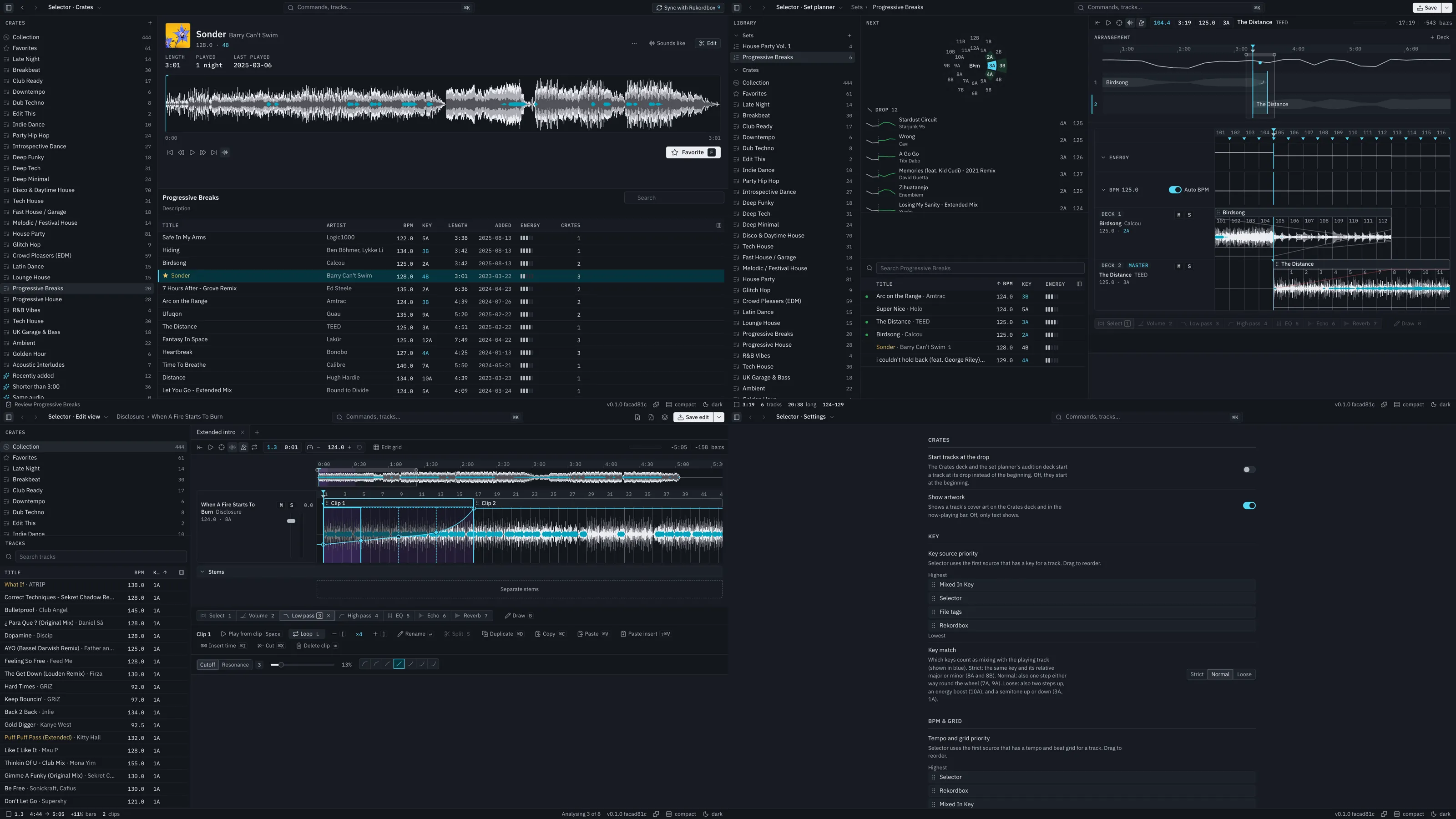
Selector Studio has four screens. Switch with the menu beside the Selector mark at the top left of the title bar, which names the screen you are on, or with the keys.
| Screen | Key | What it is for |
|---|---|---|
| Crates | ⌥1 | Browse, listen, decide. |
| Set planner | ⌥2 | Arrange tracks on decks and plan the transitions. |
| Edit view | ⌥3 | Change one track: clips, loops, curves, cues. |
| Settings | ⌥4 or ⌘, | Sources, key matching, waveforms, add-ons. |
Things that work everywhere
Section titled “Things that work everywhere”- Command palette. ⌘K lists every command with its key. Search tracks and commands from the title bar too.
- Undo. ⌘Z undoes and ⇧⌘Z redoes, for every kind of edit: curves, clips, crates, sets, settings. A toast’s Undo button is a shortcut to the same history.
- Right-click. Anything you can act on has a right-click menu: a clip, a lane, a track, a crate, a cue. The menu shows the same actions as the buttons and the keys, each with its key.
- Back and forward. ⌘[ and ⌘] move through the screens you visited.
- Space plays and stops what you last touched.
- Key colours. A key shown in blue mixes with the master track: the track playing, else the one you are working on, else the last one played. How loose “mixes” is, Strict, Normal or Loose, is a setting.
- Sound that follows you. If you start a track on the Crates deck and move to another screen, a bar appears above the status bar with Play/Pause and volume. Click its title to go back.
Where the other parts are
Section titled “Where the other parts are”- Sync with Rekordbox is a button in the title bar. See Sync.
- Export to USB is in the File menu and in ⌘K. See Export to USB.
- Add-ons are behind the puzzle button in the status bar. See Add-ons.