Open a track
The Edit view (⌥3) changes one track. Open a track in it from Crates with ↵, the deck’s Edit button, a double-click or the row’s right-click menu. The back arrow in the title bar returns to the same crate and track.
The canvas
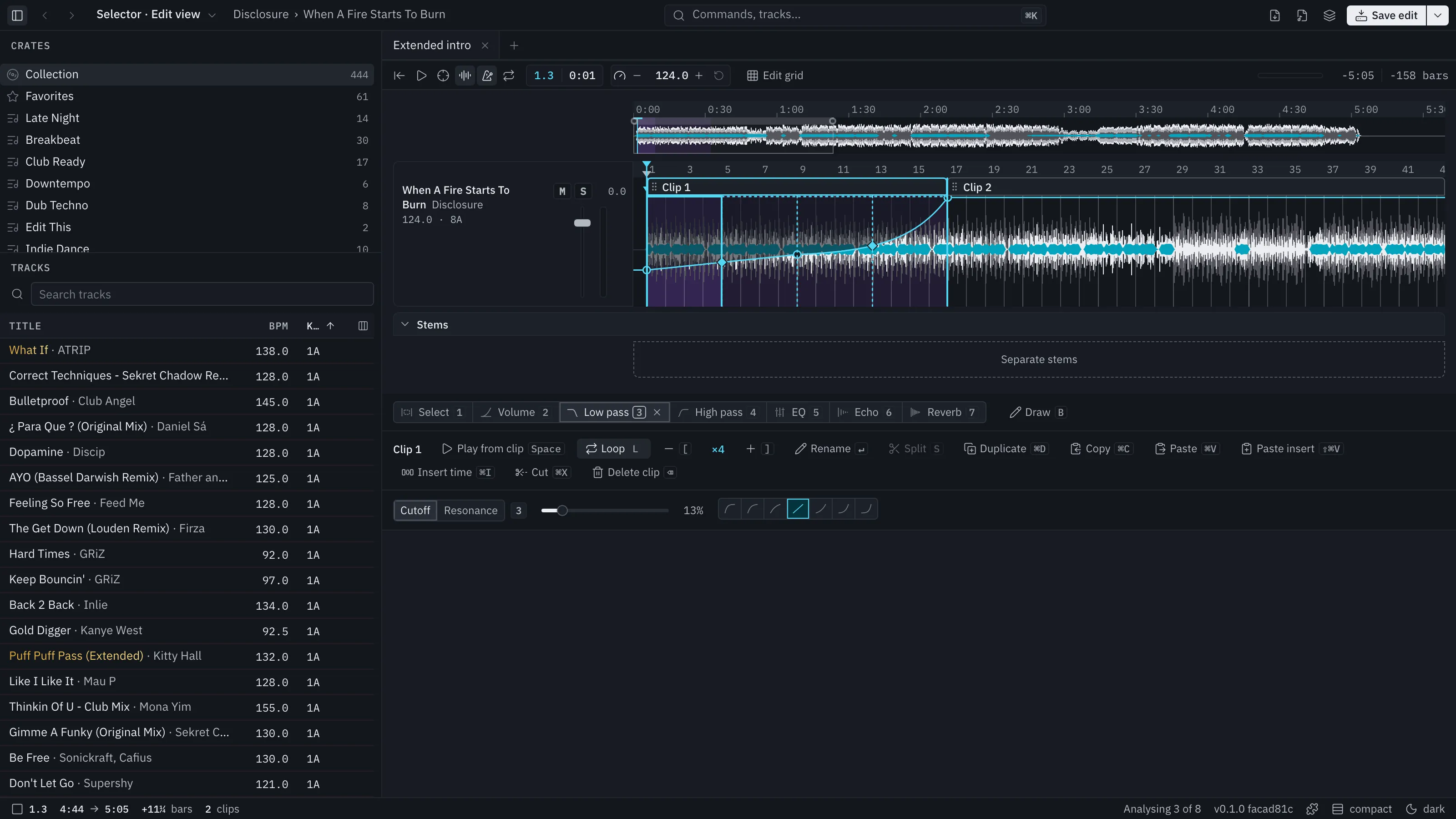
Section titled “The canvas”A track opens as one clip named after the track, on an open canvas: the timeline runs on past the end, so you can add material after the last bar. An overview of the whole track sits above the detail and shows where the detail is looking. Drag its box to scroll, drag its handles to zoom.
Everything about a lane sits on its card at the left: title and artist, tempo and key, mute and solo above a volume fader with a meter. Mute and solo are for listening while you work and are never saved.
Click the ruler to put the cursor there.
Select first
Section titled “Select first”Dragging across the waveform always selects a stretch. A click with nothing else puts the cursor. What you do with a selection is an action on it:
- L loops it: the clip under it is split around it and the stretch plays twice.
- S splits at its edges.
- ⌫ silences it. ⌘⌫ deletes the time and closes the gap.
- ⌘C copies it.
A clip is the one object you edit. Its parts:
- Header: drag to move it. Double-click to rename. Clips are called Clip 1, Clip 2 in the order made.
- Edges: drag to trim. Trimming the start leaves the rest where it was.
- Loop: turn it on in the clip row or press L. Drag the right edge to add or take away whole repeats; the end of the first pass sets how long a pass is. Dotted lines in the clip’s colour mark each repeat. A clip can be as short as a beat.
Press N to make a new clip at the cursor, up to eight bars, looped.
Pick a clip and the clip row appears under the operations: Play from clip, Loop, the repeat count with Fewer and More, Rename, Split, Duplicate, Copy, Paste, Paste insert, Insert time, Cut and Delete, each with its key. The same actions are in the right-click menu and in ⌘K.
| To | Do |
|---|---|
| Pick several clips | ⇧-click or ⌘-click; ⌘A picks all |
| Nudge | ← or → by a beat, ⇧ for a bar |
| Duplicate | ⌘D |
| Step through clips | Tab and ⇧Tab |
| Let go | Esc |
Copy takes what you hear: select a loop with its four repeats and paste, and the paste plays four repeats. Paste replaces the same length, so the track keeps its length and nothing after it moves.
Playing and moving around
Section titled “Playing and moving around”- Space plays. With a clip picked, play starts at the clip’s beginning. Otherwise it starts at the cursor.
- Stop goes back to where play started.
- Editing never moves the playhead: change a clip or a curve while it plays and you hear the change in place.
- Wheel and trackpad: sideways scroll pans, vertical scroll zooms, anywhere on a timeline. + and − zoom too.
- Middle-button drag pans like a hand tool from anywhere and grabs nothing.
- F turns Follow on, which keeps the playhead in the centre. Dragging the view turns it off. The view otherwise never moves on its own.
See Keyboard shortcuts for every key.
Curves and effects, Time and layers, Cues and beat grid, Save an edit.